
Pitch mapping, offside lines and pitch zones
How Video Analysis finds the pitch in a frame, what to do when it can't, and how to draw offside lines and pitch zones that sit on the grass.
What pitch mapping does
When you stop on a frame, Video Analysis looks for the pitch's lines and works out where the pitch is in the picture. With the pitch mapped:
- Rings, circles, shapes and text on the pitch lie flat on the grass in the right perspective.
- Offside line and Pitch zones work.
- Drawings can follow the camera after the pause.
Mapping runs in your browser and usually takes a second or two. While it runs, the picture's corner says Finding the pitch lines….
See the mapping
On a mapped frame the pitch's markings are shown as faint mint lines, so you can check they match the real ones. They're a guide in the editor only and never exported. Hide pitch lines and Show pitch lines turn them off and on.
When the pitch isn't found
Close-ups, replays and frames with few lines in view can't always be mapped. When that happens a small amber Pitch not mapped tag appears at the top of the video. Once you draw something there, it opens into an amber box that says The pitch couldn't be mapped automatically, with a Map pitch by hand button. Until you map it, your drawings lie on a stand-in ground at a guessed angle (Ground tilt sets how steeply it slopes away), and offside lines and pitch zones don't appear. Click the tag to open the box at any time.
If the guessed angle is fine for what you're drawing, press Not now. The box folds back into the tag, and for the rest of the clip other pauses without a mapped pitch show only the tag. Choosing an offside line or pitch zones on one still opens the box.
Map the pitch by hand
On a frame where the pitch wasn't found, press Map pitch by hand:
- Click a point on the video you can place exactly: a corner, where two lines meet, a penalty spot, a goalpost, the end of the centre circle.
- Click the same point on the pitch diagram in the card.
- Repeat. After four pairs the pitch is fitted and its lines are laid over the video, so you can see whether it's right. Each extra pair tightens it, and from six points the card says how close the fit is.
- Press Use this mapping.
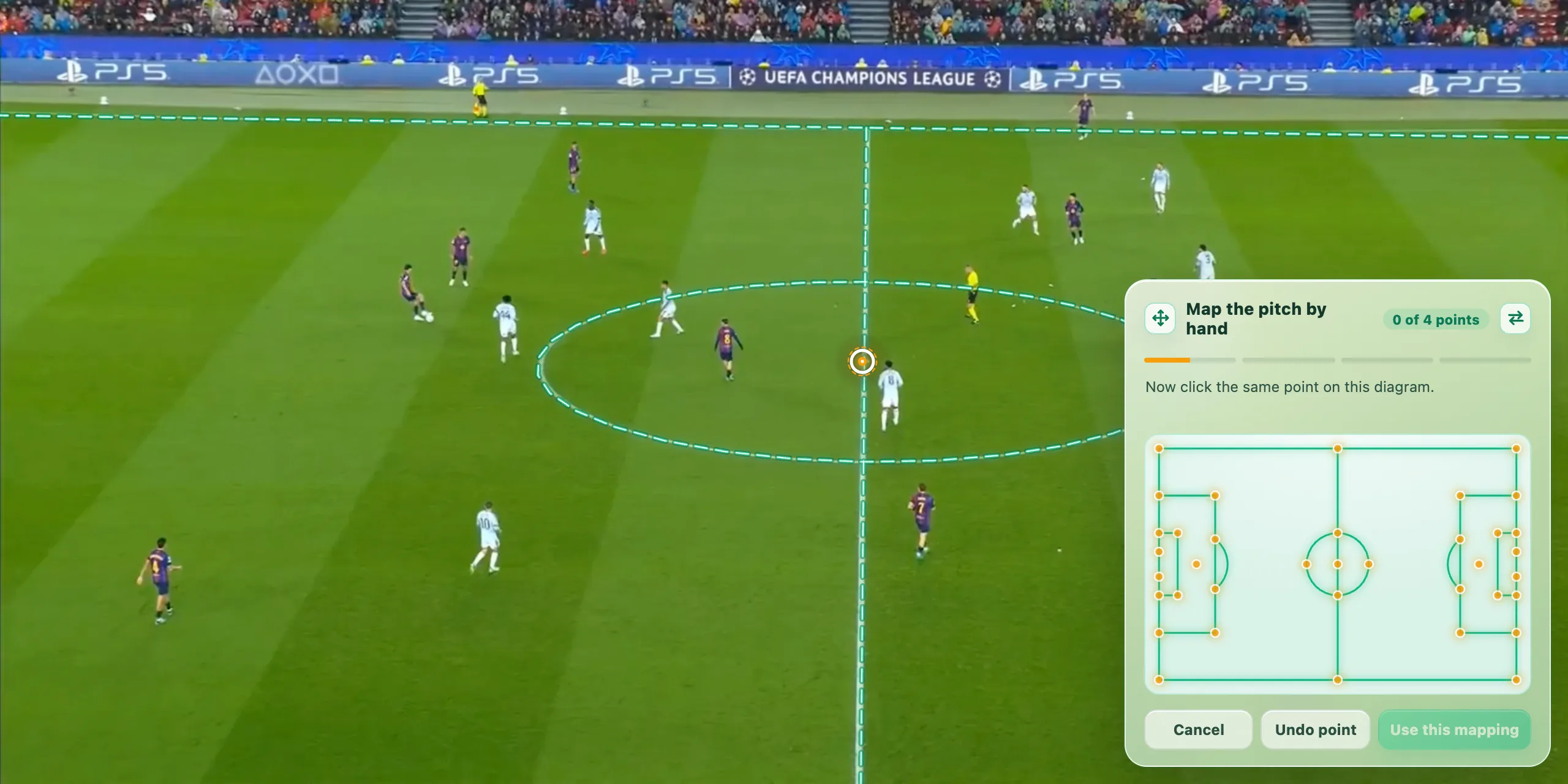
Undo point takes back the last pair, and Cancel leaves the frame as it was.
If the card covers a point you need, drag it by its top (the arrows button), or press the button at its top right to move it to the other side of the picture. With the keyboard, select the arrows button and use the arrow keys.
Correct a mapping
If the lines you see don't match the pitch, press Correct pitch mapping. The card opens with the current mapping shown as dashed lines; match points as above. Your drawings keep their places in the picture. Drawings that were following the camera stop doing so: use Follow camera on them again.
Offside line
Pick Offside line (key L) and press on the pitch where the line goes, usually the last defender's feet. Or click a player's box and choose Offside line. The line runs across the pitch, parallel to the goal line.
To keep it on as play goes on, select it, pick the players it should follow, and press Track players. See Track players.
Pitch zones
Pick Pitch zones (key Z) and the zones are laid over the pause at once. Select them to change:
- Their colour.
- Layout: Positional play, Thirds, Channels or 18 zones.
- Strength: how strongly the lines and shading show.
- Shading: None, Key areas (the layout's key areas), or Pick zones to shade the zones you click.
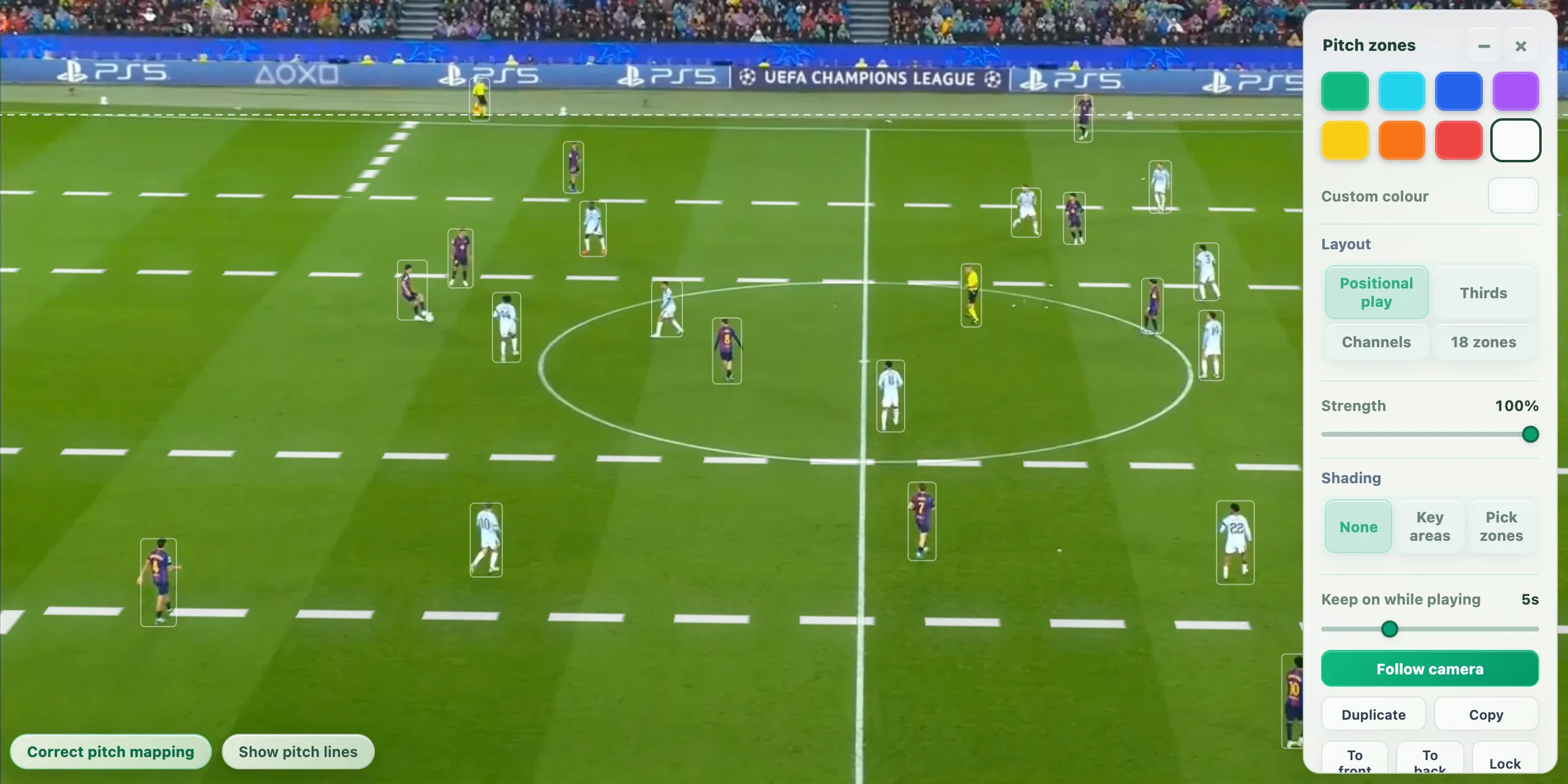
Pitch zones can follow the camera after the pause: select them, set Keep on while playing and press Follow camera.
Something missing, wrong or unclear? Tell us and we'll fix it.