
Get started with Video Analysis
Open a match clip, pause it where something happens, draw on that moment and export a video that explains it.
What you need
- A DrawTactics membership. Video Analysis is part of it, with every other tool.
- A computer or tablet. On a phone you'll see a notice instead: the editor needs a bigger screen.
- A match clip in MP4 or MOV, up to 2 minutes long. Trim longer footage first.
Everything runs in your browser. Your clip isn't uploaded: it stays on your device, and so do the models that find the pitch and the players.
Open a clip
- Open Video Analysis.
- Drop a clip onto the editor, or press Choose video.
- Wait for the first frame. A bar shows the clip being checked, copied into your browser and loaded.
While the clip opens, the models that find the pitch and the players start downloading. A chip in the header shows how far they've got, then says they're ready. You can start drawing straight away; tools that need a model say when they're waiting for it.
Projects you've opened before are listed in the empty editor, so you can carry on where you left off.
The basic idea: pauses
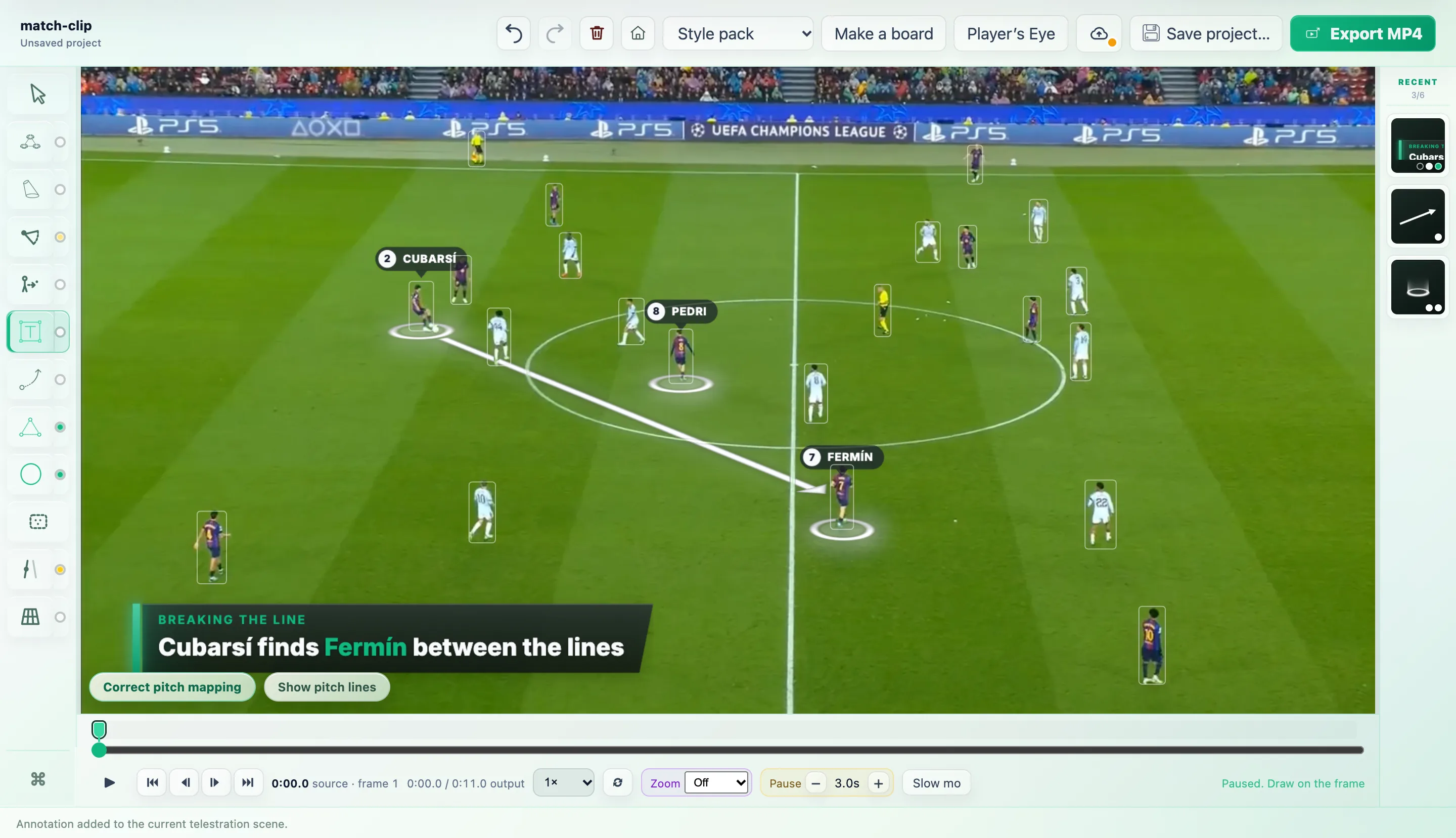
An analysis is a clip with pauses in it. A pause is a moment where the video stops, your drawings come in one after another, they stay for a few seconds, then leave and the video plays on.
- Play or scrub to the moment you want to explain, and stop there.
- Pick a tool from the rail on the left and draw. The first drawing on a frame makes a pause there.
- Add as many drawings to the pause as you need. They come in during the pause in the order you drew them.
- Press Space to play. Playback stops at each pause so you can check it.
- Press Export when you're happy. See Export your analysis as an MP4.
More on this in Pauses.
Find your way round the editor
- Tool rail (left): Select, Player, Spotlight, Vision, Move player, Text, Arrow / Line, Shape, Circle, Blur, Offside line and Pitch zones. Each tool has a key, shown in its tooltip. The small dot beside a tool opens its options: colour, style and size.
- The picture (middle): where you draw. Click a drawing to select it; its options open beside it.
- Transport (under the picture): play, the scrubber, the pause length, zoom and slow motion.
- Recent (right): drawings you've made recently. Click one to pick its tool with the same style.
- Header: save, Your projects, Style pack, Make a board, Player's Eye and Export.
Click players to mark them
When the video is stopped, the players on that frame are found and a faint box appears round each. With Select, click a player's box for a menu: Player (a ring at their feet), Spotlight or Offside line. Shift-click to pick several, then Chain or Area links them. See Mark players.
Style packs
Style pack in the header changes the look of everything at once: Broadcast, Classic, Night match, Coaching board or Minimal. It sets the arrows, player rings, names, spotlights, captions and shapes in one go, and the tools keep that look for what you draw next.
Undo
⌘Z undoes and ⌘⇧Z redoes (on Windows, Ctrl+Z and Ctrl+Shift+Z). The Undo button's tooltip names the change it will undo.
Something missing, wrong or unclear? Tell us and we'll fix it.