
Draw arrows, shapes, cones and blurs
Every drawing tool in Video Analysis, its options, and how to select, change, copy and arrange what you've drawn.
Pick a tool and its options
Pick a tool from the rail on the left, or press its key: the key is in the tool's tooltip. The dot beside a tool opens its options (colour, style, size). Options you choose stay with the tool, so the next drawing matches.
What you just drew keeps its handles while its tool stays picked: drag a handle to change it, press ⌫ to delete it, or nudge it with the arrow keys, without switching to Select.
Arrow / Line
Key A. Drag from where the move starts to where it ends.
- Arrowhead: at the end, at both ends, or none (a plain line).
- Line: solid, dashed or dotted.
- Style: Glow (a white centre and a soft glow of the colour) or Standard (a solid raised line).
- Path: Ground (along the grass), Lofted (arcs through the air, with a shadow on the grass, for a lofted pass) or Wide (a broad see-through arrow lying on the pitch, for a direction of play).
- Moving light: light runs along the arrow while the pause plays.
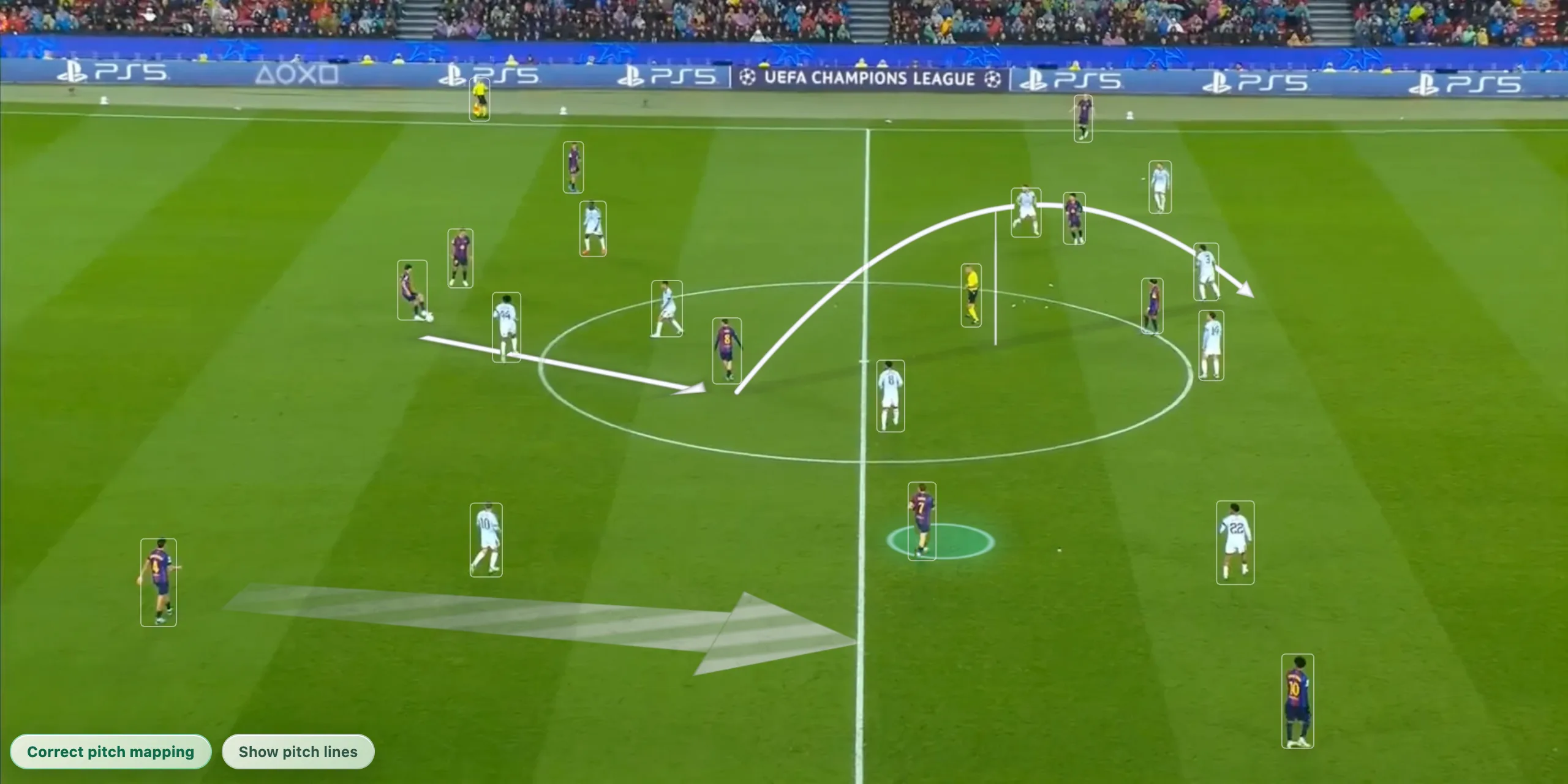
To curve an arrow, double-click it (or press Curve in its options) and drag the green handle. Drag the handle back onto the straight line to straighten it.
Shape and Circle
Shape (key G): click to add points, then click the first point again (or press ↩) to close it. ⌫ takes back the last point and Esc cancels.
Circle (key O): drag from the middle outwards. On a mapped pitch the circle lies flat on the grass.
Both have:
- Fill style: Outline, Striped or Filled (one see-through colour).
- Edge: solid, dashed or dotted.
A shape also has Corners: sharp or rounded.
Vision
Key I. Shows which way a player is looking. Press on the player's head and drag to where they're looking. Then drag the point, the far end, or the square handle (the cone's width) on their own.
- Mode: Look (one direction) or Scan. With Scan, the player turns to a second direction (the amber handle) and back while the pause holds. Drag the amber handle to where they check.
- Style: Fade or Outline.
Blur
Key U. Drag a box over what to hide: a face, a scoreboard, an advert. The footage under it is blurred, under your drawings. Choose how long it lasts: only while its pause holds, or the same area all the way through the video.
Move player
Key M. Shows where a player should have been. Press on the player's feet and drag to where they should be. During the pause a copy of the player, cut out of the frame, walks along the dashed run, while the real player stays where they were. Press on the feet for the cleanest copy.
Player, Spotlight, Text, Offside line and Pitch zones
These have pages of their own: Mark players, Add text and captions and Pitch mapping, offside lines and pitch zones.
Select and change drawings
- Select (key V), then click a drawing. Its options open beside it; drag the panel by its heading to move it out of the way.
- Drag a drawing to move it, or its white handles to resize or reshape it.
- ⇧-click, or drag a box round several, to select more than one.
- Arrow keys nudge the selection; hold ⇧ to nudge further.
In a drawing's options:
- Duplicate (⌘D) and Copy (⌘C; paste in another pause with ⌘V).
- To front and To back (⌘⇧] and ⌘⇧[); ⌘] and ⌘[ move one step.
- Lock (⌘⇧L): a locked drawing can't be moved or deleted until you unlock it.
- Delete, or press ⌫.
Draw the same thing again
The Recent rail on the right keeps drawings you've made lately. Click one to pick its tool with the same colour and style.
Change everything's look at once
Style pack in the header restyles every drawing in the project and sets the tools to match: Broadcast, Classic, Night match, Coaching board or Minimal.
Something missing, wrong or unclear? Tell us and we'll fix it.