
Turn a frame into a tactics board or Player's Eye view
Send the frame you're on to the Screenshot Mapper to make an editable tactics board, or see the moment in 3D from a player's point of view.
Make a board from a frame
- Stop on the frame you want.
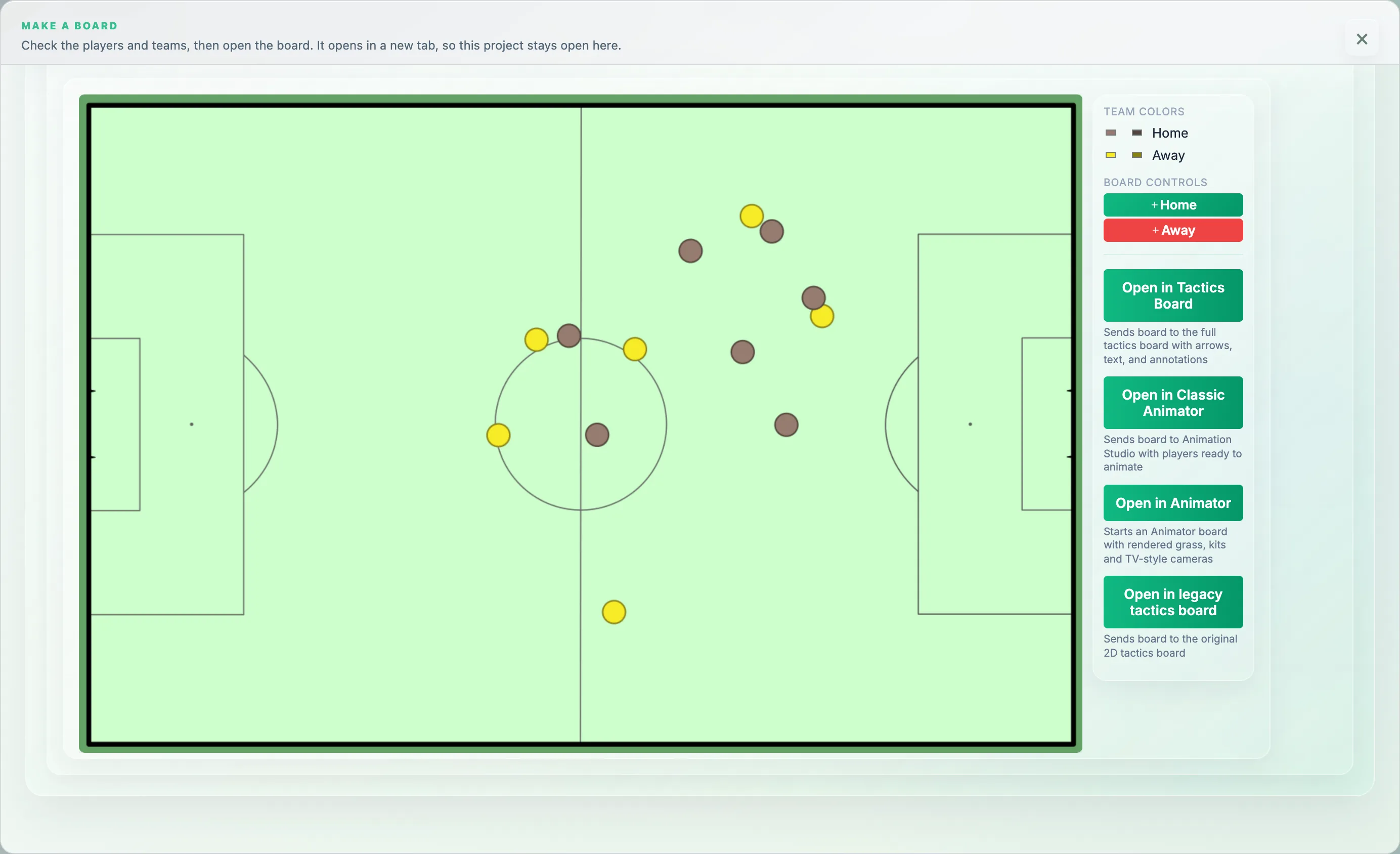
- Press Make a board in the header. The frame opens in the Screenshot Mapper, in a panel over the editor, without your drawings.
- Check the players and teams it found. Set Home, Set Away, + Home player, + Away player and Remove player correct them: choose one, then click a player or a spot on the screenshot.
- Choose where the board goes: Open in Tactics Board, Open in Animator, Open in Classic Animator or Open in legacy tactics board. It opens in a new tab, so your project stays open.
When the pitch can't be mapped
If the Mapper or Player's Eye can't find enough of the pitch's lines, it says The pitch couldn't be mapped automatically above the screenshot, and the players aren't in their real places yet. Map the pitch by hand, with the same card as Map pitch by hand:
- Press Map pitch by hand.
- Click a point on the screenshot, then the same point on the pitch diagram in the card.
- Repeat. After four pairs the pitch is drawn over the screenshot, so you can see whether it's right. Press Use this mapping.
In a midfield view, the centre spot, the four ends of the centre circle and where the halfway line meets the far touchline are usually enough.
When the pitch is mapped, automatically or by hand, its markings are drawn over the screenshot as faint lines. If they don't sit on the real lines, the mapping is wrong even if it said it worked: press Correct pitch mapping on the screenshot and map it by hand. Hide pitch lines turns the lines off. See Map the pitch in the Screenshot Mapper guides for more.
See a moment through a player's eyes
- Stop on the frame you want.
- Press Player's Eye in the header.
- Check the players and teams as above, then click the player whose view you want. You can type their name.
- Press Open Player's Eye.
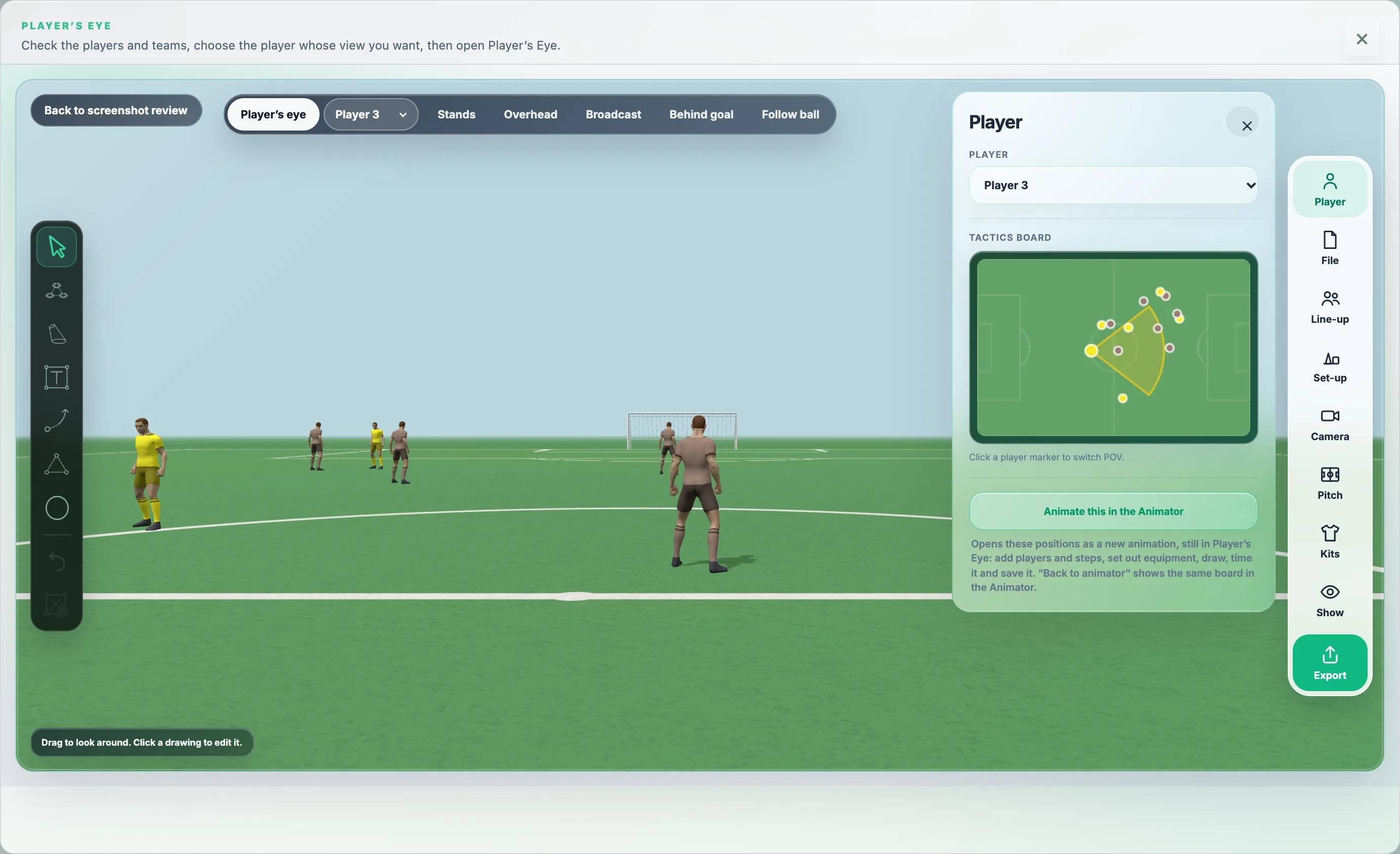
In the 3D view:
- Drag to look around.
- Switch the view along the top: Player's eye, Stands, Overhead, Broadcast, Behind goal or Follow ball.
- Switch player from the list, or click a player on the small tactics board.
- Export saves the view as an Image (PNG) or a Video (MP4).
- Animate this in the Animator starts an animation from these positions.
- Back to screenshot review goes back to check the players.
The Player's Eye view isn't added to your video analysis; it's separate.
Something missing, wrong or unclear? Tell us and we'll fix it.