
Steps and playback
Build a move step by step, curve runs, choose how the ball travels, set the timing, and play it back.
Steps
The step strip in the top bar shows Start, then each step by number, then + Step.
- + Step adds a step after the one you're on, with everyone where they were. Drag players and the ball to where they go in it.
- Click a step to go to it, or press ← and →.
- Click the step you're on (or right-click any step) for its menu: Copy this step, Timing…, Move earlier, Move later and Delete step. Deleting a step also deletes drawings shown only on that step.
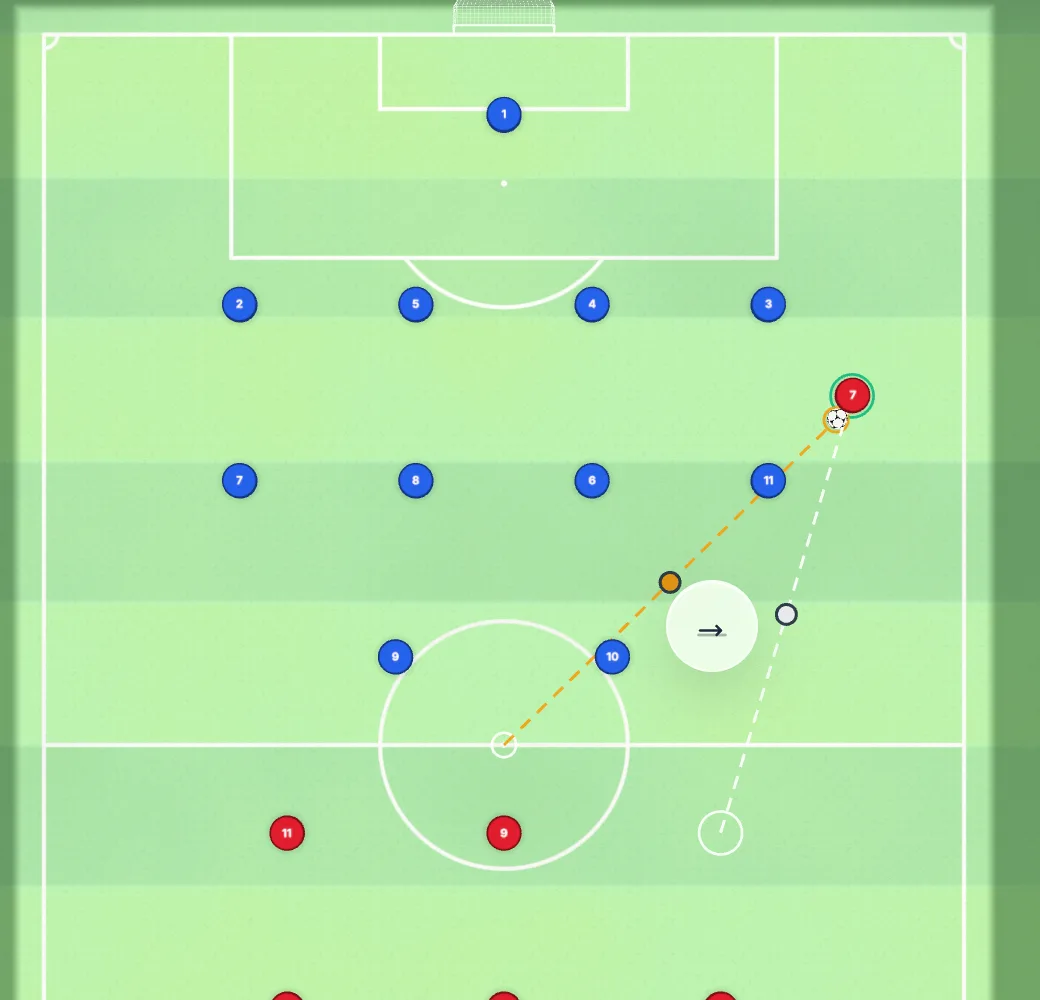
Curve a run or a pass
Each move in a step shows its path. Drag the middle of a player's or the ball's path to curve it. Drag it back near the middle to straighten it.
How the ball travels
Each ball move has a chip on its path to set its height: Ground, Lofted or High. For a shot, the chip offers Low shot, High shot or Off the bar. The ball flies with real physics, so a shot goes into the net or comes off the woodwork.
Play it back
- Play (or Space) plays from the step before the one you're on, so you see the move into it, and on to the end.
- ⇧-click Play, right-click it, or press ⇧ + Space to play from the start.
- Press Play again (or Space) to stop.
Timing
The speed chip beside Play (for example 1.2 s) sets the timing for the whole board. The same settings are in Board › Playback:
- Step length: Follows the ball (a step with a pass lasts as long as the ball takes) or All the same.
- Each step (or Steps without a pass): how long a step's move takes, 0.4 to 3 seconds.
- Pause at each step: how long the board holds still between steps, up to 2 seconds.
To time one step differently, choose Timing… in its menu: Move (how long its move takes) and Pause after it, or Same as the other steps. On the start, Hold before the first move sets a pause before anything moves. Steps with their own timing are marked in the strip.
Something missing, wrong or unclear? Tell us and we'll fix it.