
Draw arrows, shapes, text and highlights
Draw passes, runs and carries, shapes and captions, highlight and link players, and choose which steps each drawing shows on.
Open Draw in the rail and pick a tool. The banner over the pitch says what to do, with the tool's colours and options and a Done button.
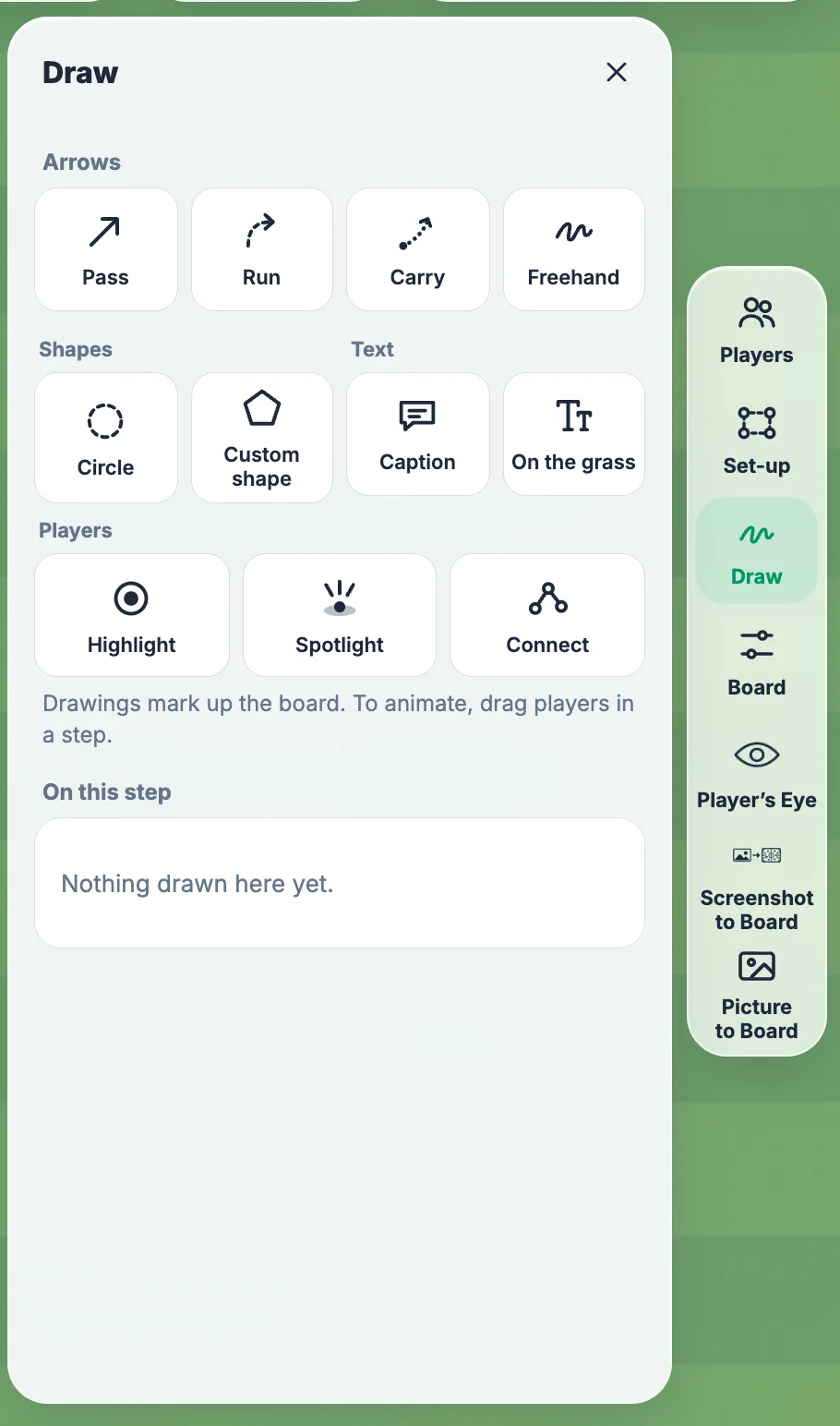
Drawings mark up the board; they don't move. To animate, drag players in a step.
Arrows
- Pass, Run and Carry: drag from where it starts to where it ends. Drag its middle later to curve it.
- Freehand: draw or write; strokes join until you press Done.
Select an arrow to change its colour, its type, its Arrowheads (At the end, Both ends or None), or a freehand line's style (Solid, Dashed or Dotted).
Shapes
- Circle: drag out a space, or circle it.
- Custom shape: click to place each corner.
Fill: Stripes or Solid colour.
Text
- Caption: text over the picture. Size: Small, Medium, Large or Extra large. Edit changes the words; ⇧↩ starts a new line.
- On the grass: words on the pitch, Painted or Mown into the grass. Mown text can appear with a wipe or letter by letter.
Highlight, spotlight and connect players
- Highlight and Spotlight: click players to mark them. Chain links them with a line, Area shades the space between them, None keeps them apart. Break chain (or B) starts a new chain.
- Connect: lines between players (Chain or Area, Solid or Dashed) that follow them as they move. A chain's Look can be a Wall or show Gap distances.
Which steps a drawing shows on
Each drawing belongs to steps. After you draw, choose Show on: This step, From here on or All steps. To change it later, use the drawing's step menu: This step, From here on, Until here, All steps, or Choose steps… (then click steps in the strip to show or hide it).
On this step, at the bottom of the Draw panel, lists the drawings on the step you're on.
Colours
Arrows, shapes, text and highlights come in White, Yellow, Green, Cyan, Blue, Purple, Orange or Red, or Any colour.
Something missing, wrong or unclear? Tell us and we'll fix it.