
Save, open and export boards
Where your board is kept, how to save it to Your projects or as a file, open a saved board, and export a PNG.
Where your board is kept
The board you're working on is kept in this browser, so it's still there when you reload or come back. To keep it for good, or to open it on another computer, save it to Your projects or as a file.
Save to Your projects
Press the cloud button (top right). The first time, name the board and choose a Folder, then press save. After that it saves by itself as you work, and the button shows whether it's saved.
A new board you've changed saves itself to Your projects after a couple of seconds, named Untitled board with the date and time.
Once saved, the cloud button opens a menu: Rename…, Move to folder…, Save a copy… and Open Your projects.
Open saved boards from Your projects on any computer. If the board was changed on another device in the meantime, you can open the newer version, keep both, or replace it with the one you have open.
Save as a file
Download board file saves the board as a file, drawtactics-three-board-<date and time>.json. Load board opens one again. It also opens files from the Legacy Tactics Board; anything the new board can't show is left out.
Loading a file or resetting the board starts a new board in Your projects, so the saved one isn't overwritten.
Export a PNG
- Press Save as PNG (top right).
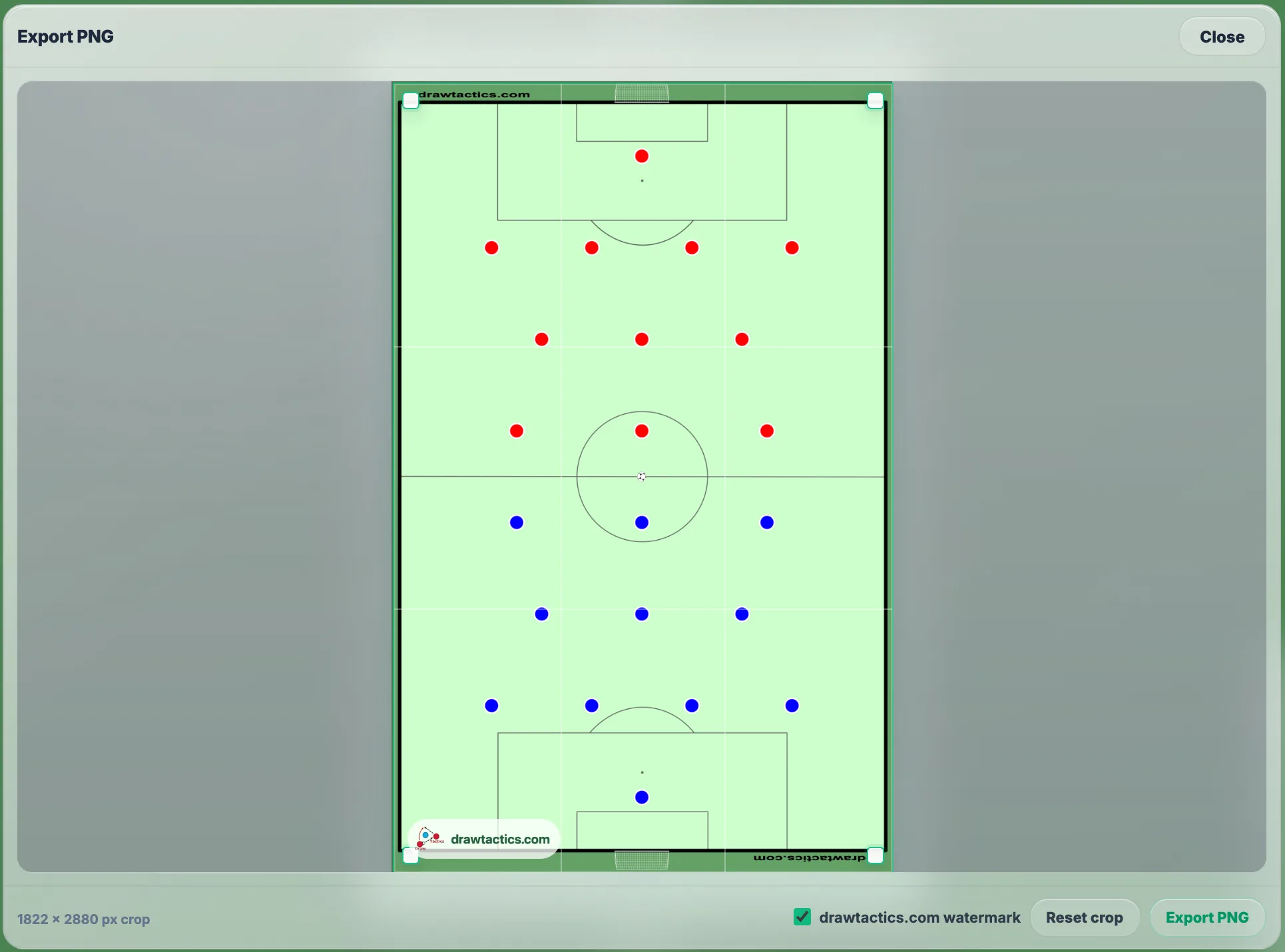
- Drag the crop box, or its corners, to frame the picture. The size shows under the preview. Reset crop shows the whole board again.
- Tick or untick drawtactics.com watermark.
- Press Export PNG.
The picture is named drawtactics-board-v2-<date and time>.png.
Something missing, wrong or unclear? Tell us and we'll fix it.