
Get started with the Tactics Board
Open the Tactics Board, find your way round it, and set up two teams on a 3D pitch in a few clicks.
What you need
- A DrawTactics membership. The Tactics Board is part of it, with every other tool.
- A computer or tablet.
The board runs in your browser and keeps what you're working on in this browser, so it's there when you come back.
Open the board
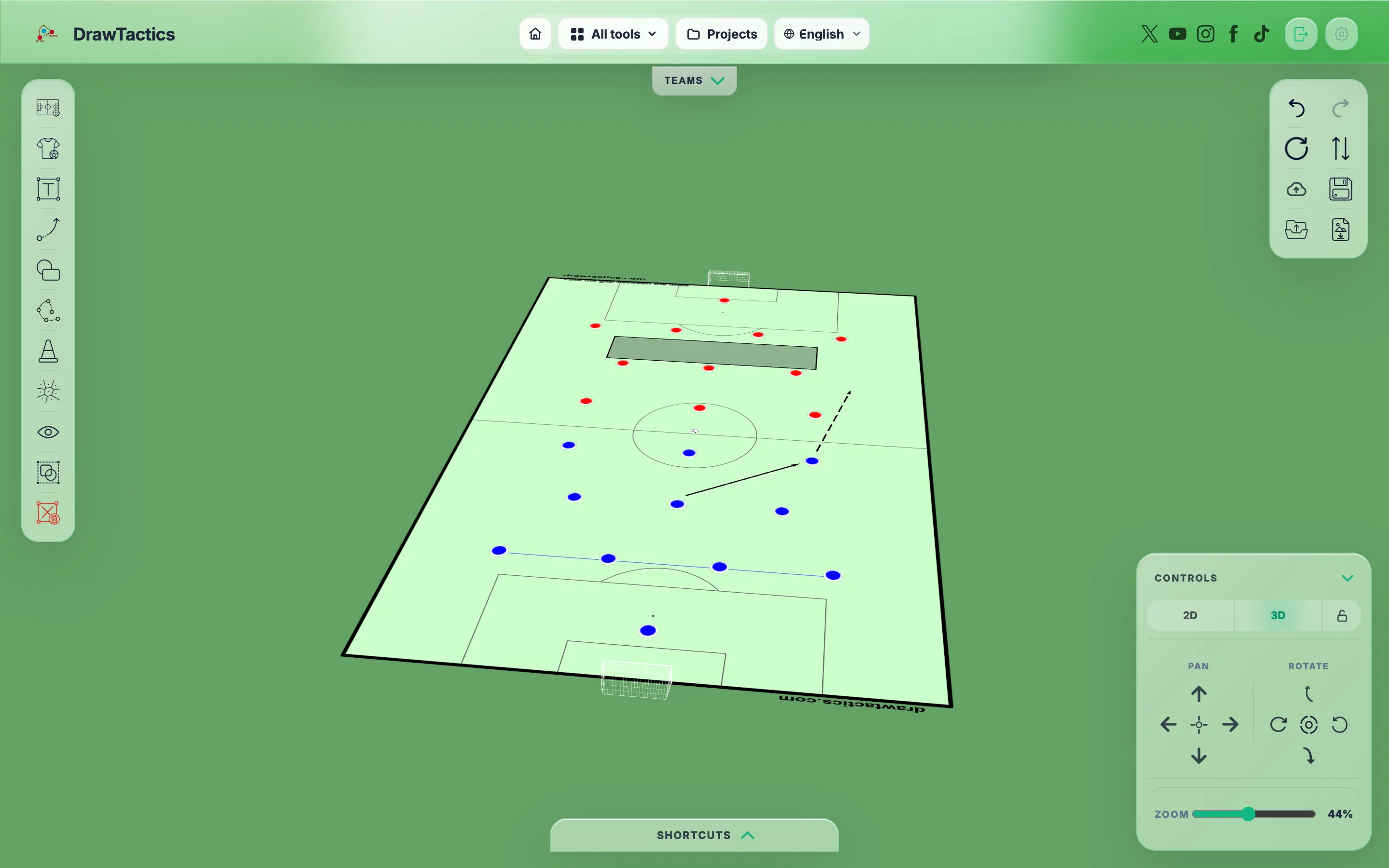
Open the Tactics Board. It starts with a pitch, two teams of eleven in a 4-3-3 (red Home, blue Away) and a ball.
Find your way round the board
- Tool rail (left): Pitch, Styles, Text, Arrows and lines, Shapes, Connections, Training, Voronoi, Player's Eye, Select multiple and Delete selected. Each opens a panel beside the rail; the X closes it.
- Actions (top right): Undo, Redo, Reset board, Flip board, Save to Your projects (the cloud), Download board file, Load board and Save as PNG.
- Teams (the tab at the top): both teams' formations, names, numbers and colours. See Teams, formations and squads.
- Controls (bottom right): 2D or 3D, lock the view, pan, rotate and zoom. See Pitch, view and camera.
- Shortcuts (the tab at the bottom): the keyboard shortcuts. They're also on Keyboard shortcuts.
Move players
Drag a player, the ball or anything you've drawn to move it. Selecting an arrow, shape, connection, text box or training item opens its panel, so you can change it straight away.
Start again
Reset board asks first, then puts back the starting pitch, teams and ball. Undo brings back up to 50 changes.
Other boards
The All tools menu in the header opens the other DrawTactics tools, including the Animator and Classic Animator (to make moves play step by step) and the Legacy Tactics Board (the original 2D board).
Something missing, wrong or unclear? Tell us and we'll fix it.