
Add text and captions
Write captions in Broadcast, Glass or Bold looks, highlight key words, add a heading, and put text on the grass.
Add text
- Pick Text (key T).
- Click where the text goes, or drag a box for it.
- Type, then press ↩ (Return) or Place.
⇧↩ or New line starts a new line. Esc or Cancel throws the text away. Clicking somewhere else keeps what you typed.
The box grows as you type. To change text later, double-click it, or select it and press Edit text.
Overlay or on the pitch
In the Text tool's options, Text style sets where text goes:
- Overlay: on top of the picture, like a TV caption.
- On pitch: painted on the grass, lying flat in perspective. It sits best on a mapped pitch; see Pitch mapping.
Caption looks
Overlay text has a Look:
- Plain: a box with an accent edge.
- Broadcast: an accent strip with a dark panel, and a small capitalised heading.
- Glass: frosted glass over the picture.
- Bold: big words with no box, key words swept with a highlighter.
The editor's text box looks like the look you've picked while you type.
Key words
Put asterisks round words to make them stand out: *jump the pass*. Key words show in the accent colour, or with a highlighter in the Bold look. Text on the pitch leaves the asterisks out.
While you type, Key word in the text bar puts asterisks round the selected words, or round the word the cursor is in. Press it again on marked words to take them off.
Heading
Broadcast, Glass and Bold captions can have a small heading over the words, such as "Pressing trigger". Type it in Heading (optional) at the top of the box, or later in the caption's options.
Look, size and colour while you type
The bar beside the text box has:
- Look: Plain, Broadcast, Glass or Bold (overlay text).
- A− and A+: smaller and larger text.
- Colour: a caption's accent colour, or the text's colour. Plain text has a second colour, marked *, for its key words and its accent strip.
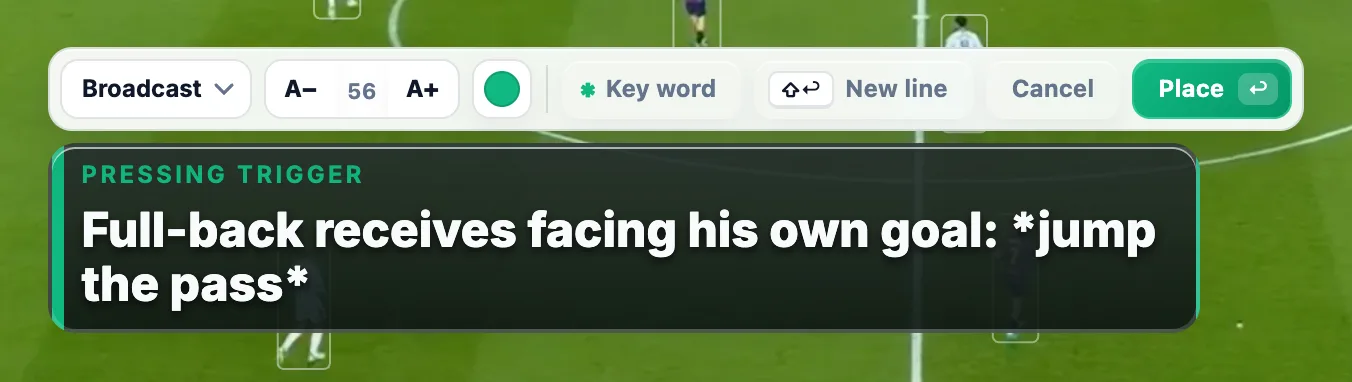
For new text these change the Text tool's settings too, so your next text matches. For text you're editing, they apply when you press Save.
More options are in the Text tool's options and the selected text's options: Font size, Background, Accent and Text colour.
Text on the pitch
Text on the pitch has two more options:
- Text colour: Paint (in the text's colour) or Grass tint (no colour of its own: the grass itself is lightened).
- Size: Font size or Fit to box (the words fill the box you drew).
On a mapped pitch, drag the text's turn handle to turn the words round on the grass.
Something missing, wrong or unclear? Tell us and we'll fix it.