
Export your screenshot as a PNG
Crop your annotated screenshot, choose the watermark, and download it as a full-size PNG or copy it to paste straight into a message or slide.
Export a PNG
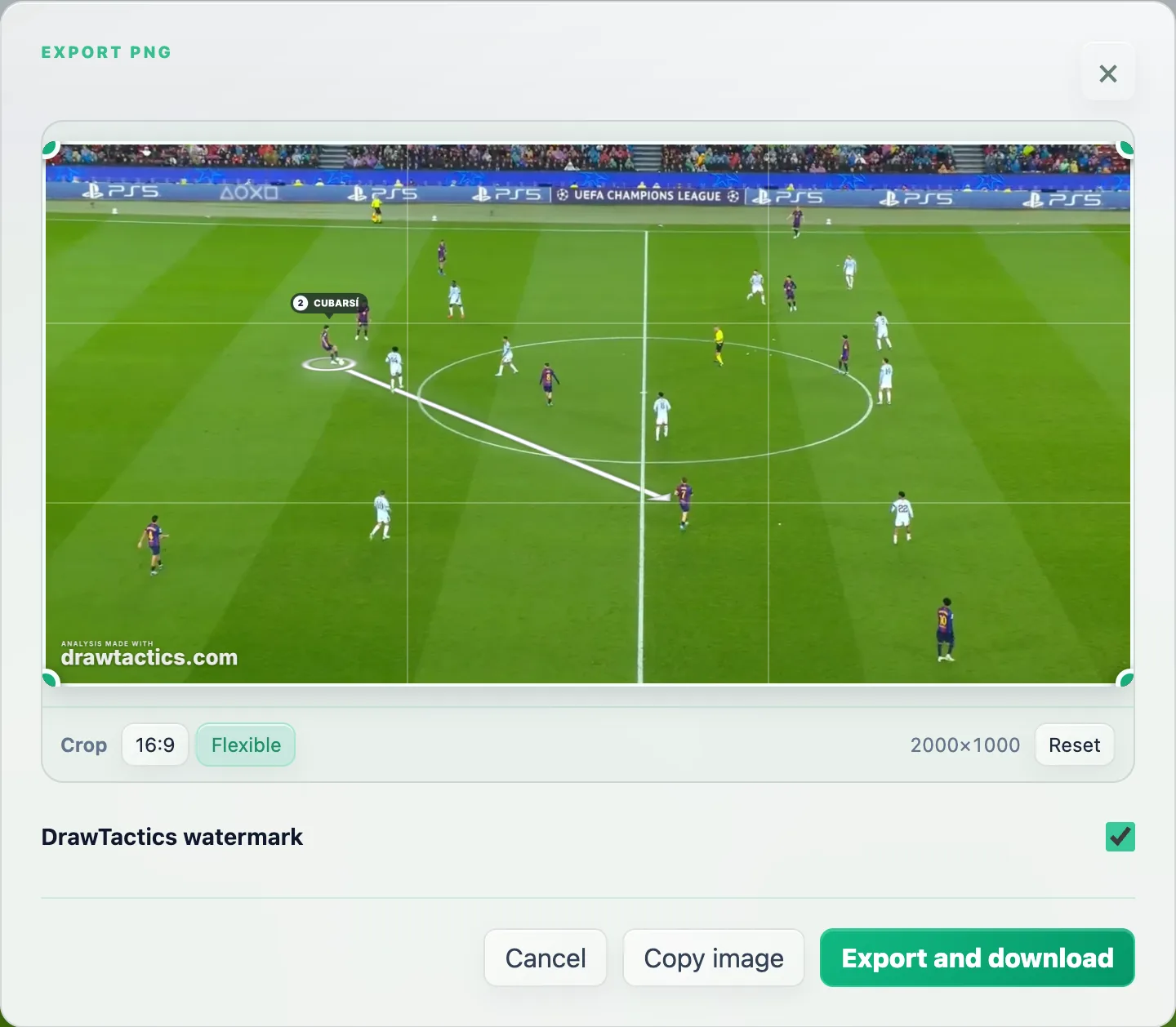
- Press Export PNG in the header.
- Crop it if you want (below). The preview shows the result.
- Press Export and download.
The PNG is made at your screenshot's full size (or the crop's), in your browser. It's named after your screenshot, for example drawtactics-match-screenshot-annotated.png.
Copy instead of downloading
Copy image copies the annotated screenshot, so you can paste it straight into a message, a document or a slide.
Crop
Crop frames the picture:
- Flexible (the default): any shape.
- 16:9: the usual widescreen shape.
Drag the crop box, or its corners, in the preview. The size of the result is shown beside it. Reset shows the whole picture again.
Watermark
DrawTactics watermark adds a small DrawTactics mark in the corner. Untick it to export without one.
Something missing, wrong or unclear? Tell us and we'll fix it.