
Mark players
Put rings, spotlights, names, shirt numbers and icons on players, link them into chains and areas, or show a name with no marker at all.
Mark a player
Three ways:
- Click their box. A faint box appears round each player found on the screenshot. With Select, click one and choose Player, Spotlight or Offside line.
- Player tool (key P): press on the player's feet. If you press anywhere in a player's box, the ring goes at their feet.
- Spotlight tool (key S): the same, with a spotlight instead of a ring.
The new player is selected, so its options are open for a name, number and icon.
Mark several players at once
- ⇧-click players' boxes, or drag a box round them, then choose Chain or Area (three or more players) to mark them all and link them, or Player or Spotlight to mark each without links.
- On a tablet, choose Add to chain from the menu, then tap players to add or remove them.
Marker looks
In the Player tool's options, or a selected player's, Marker sets the look:
- Halo: a bold ring in the player's colour. Ring sets it Whole or in four pieces (Gaps).
- Classic: two rings.
- Glow: a thin ring with a soft wall of light rising round the player.
- Pulse: a bright ring with a ring of light round it.
- None: no marker at all, only the player's name and icon. Give the player a name or an icon, or nothing shows.
Size sets the marker's size. Outer ring and Inner ring set its colours.
Names, numbers and icons
Select a player, then:
- No. and Name: the shirt number and name over their head.
- Name style: Pill (the name on a pill) or Broadcast (a white italic name with no pill). A pill can be Dark, Team (the marker's colour) or any colour you pick.
- Icon: a warning, star, question mark, football or pointer over their head, above the name.
- Name height and Icon height: how far above the player the name and icon sit. You can also drag the white handle on the name or icon.
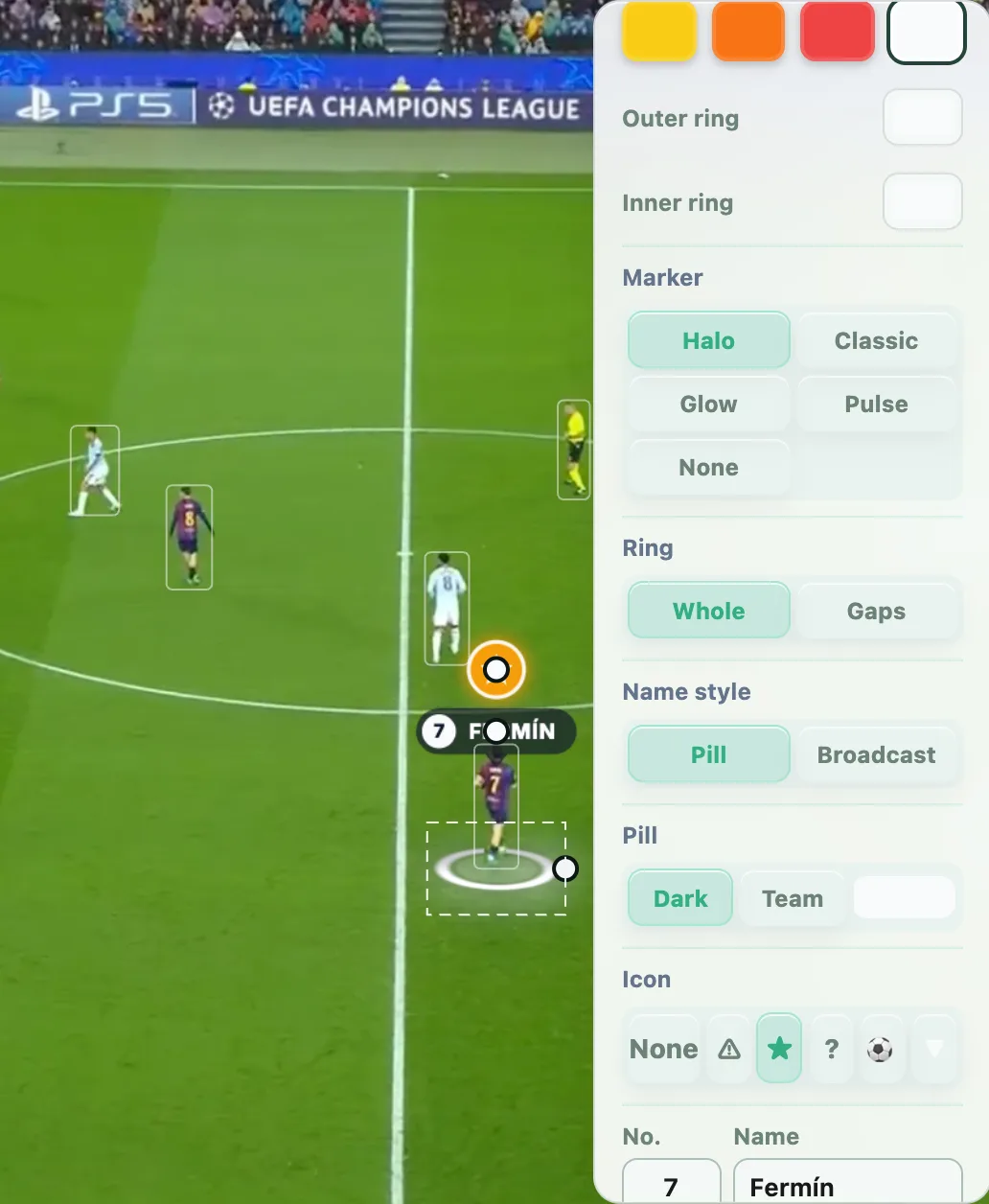
A player with the None marker look is selected by clicking their name or icon.
Link players
With the Player tool picked, the bar over the picture sets how new players join up:
- Chain: each new player is linked to the last one with a line. Click the first player again to close the chain into a shape.
- Area: the space between the players is shaded.
- None: players stay separate.
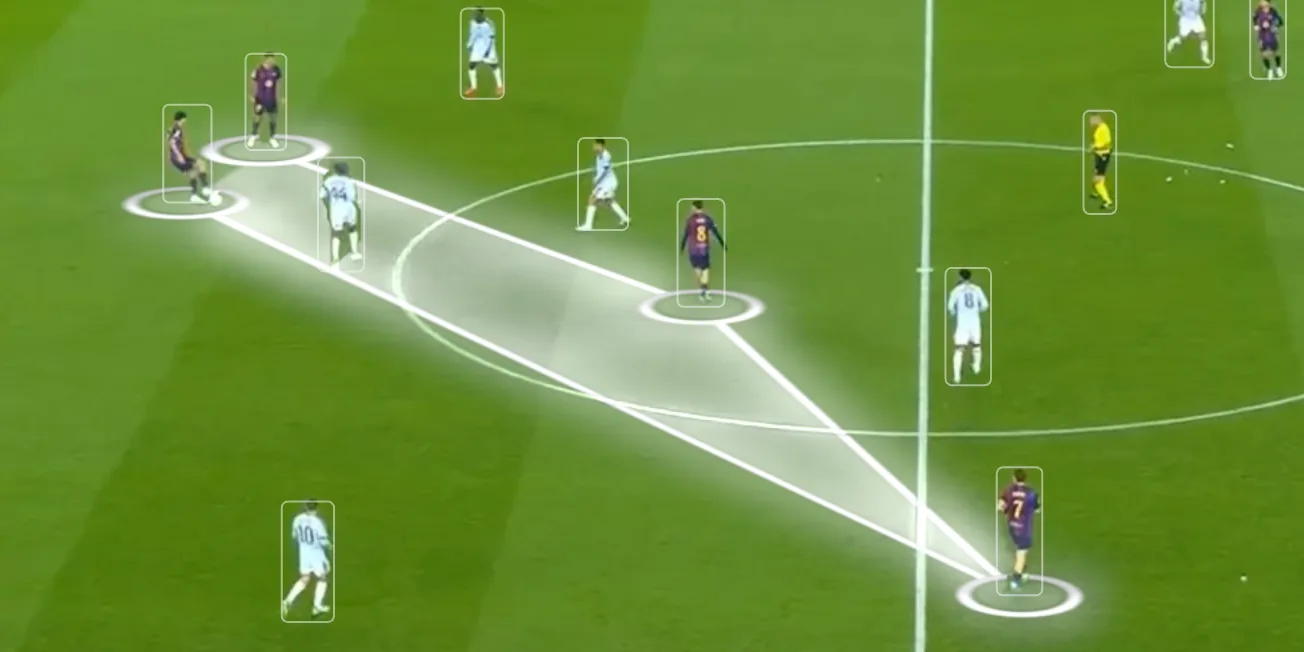
Press Break chain (or B), or ⌥-click to place a player, to start a new chain.
Spotlights
A spotlight lights a player up from above. Spotlight in its options sets the look:
- Classic: a beam over the player's rings.
- Beam: a soft column of light onto the player and a pool round their feet, with the rest of the picture darkened slightly.
Something missing, wrong or unclear? Tell us and we'll fix it.