Explain football screenshots with professional annotations, graphics mapped to the pitch, and player occlusion.
Get StartedDesktop Screenshot Annotator for Mac and Windows (Windows beta).
Browser annotation tools also included in your membership.
Highlight a passing lane, connect a defensive unit, or draw attention to the player who creates space. Combine arrows, zones, player markers, spotlights, and text to turn a screenshot into a clear tactical explanation.
Map the pitch plane so your drawing follows the camera angle. Place circles, zones, and arrows in perspective to show space and positioning with graphics that sit within the football scene.
Use player occlusion to place pitch graphics behind detected players. It helps highlighted areas and drawings fit into the scene while keeping the players visible.
Save your work as an editable desktop project, then choose a crop and export an annotated PNG. Use it in a team briefing, session plan, or tactical breakdown, and reopen the project when you want to refine it.
Choose a PNG, JPEG, or WebP screenshot in the desktop app.
Place your graphics and notes to show the coaching point.
Review the pitch perspective, player occlusion, and annotation styling.
Save the project and export a cropped PNG for your briefing or audience.
The browser Screenshot Annotator is a useful option for straightforward image analysis without installing software. Add arrows, shapes, and text, customise the colours, and export a PNG to share.
Choose desktop when you want the professional graphics, pitch mapping, and player occlusion demonstrated above. Both versions are included in your membership.
Open the browser Screenshot Annotator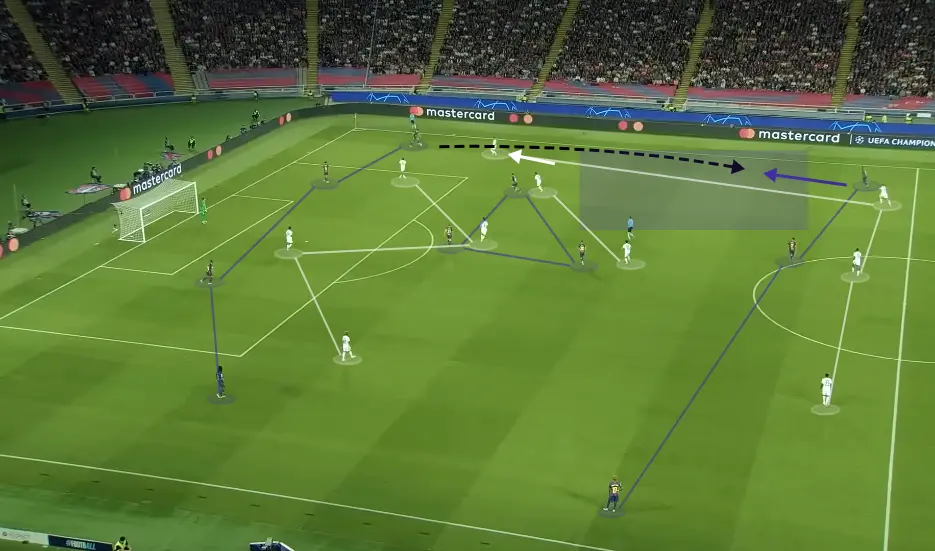
Screenshot annotation adds your explanation directly to the original image. Screenshot-to-Board instead maps visible players onto an editable pitch, ready for a diagram or animation.
Explore Screenshot-to-BoardChoose desktop for professional annotation graphics, pitch mapping, player occlusion, and editable local projects. The browser tool is a useful option for straightforward arrows, shapes, and text without installing software. Both versions are included in your membership.
It estimates the pitch plane in the screenshot so supported graphics align with the camera perspective. This helps circles, zones, and other pitch graphics sit within the scene. It does not turn the screenshot into a freely rotatable 3D match reconstruction.
Player occlusion uses detected player masks to keep players in front of supported graphics. The desktop editor and PNG export use those masks. Detection can miss details, and unclear images may produce imperfect results or leave drawings in front.
The desktop Screenshot Annotator supports PNG, JPEG, and WebP images. Import a clear match screenshot with visible players and pitch markings for the best chance of useful mapping and occlusion.
Yes. Save an editable desktop project and reopen it to adjust your annotations. Export a PNG when you need a finished image for your session plan, presentation, or tactical content.
Desktop screenshot processing runs locally on your computer. The app keeps the image in your local project folder. An internet connection is needed for sign-in and membership verification.
Screenshot annotation works on one still image and exports a PNG. Desktop video analysis adds moving footage, timed freeze-frame scenes, player tracking, and annotated MP4 exports. Explore video analysis.
No. Monthly and annual DrawTactics memberships include desktop and browser screenshot annotation alongside the other tools. Compare membership plans.
Annotate match moments with one membership for desktop and browser tools.
Get Started