Detect player positions, map them onto the pitch, and turn the result into an editable diagram or animation.
Get StartedUse the browser tool or open it from the desktop animator.
Included in your DrawTactics membership.
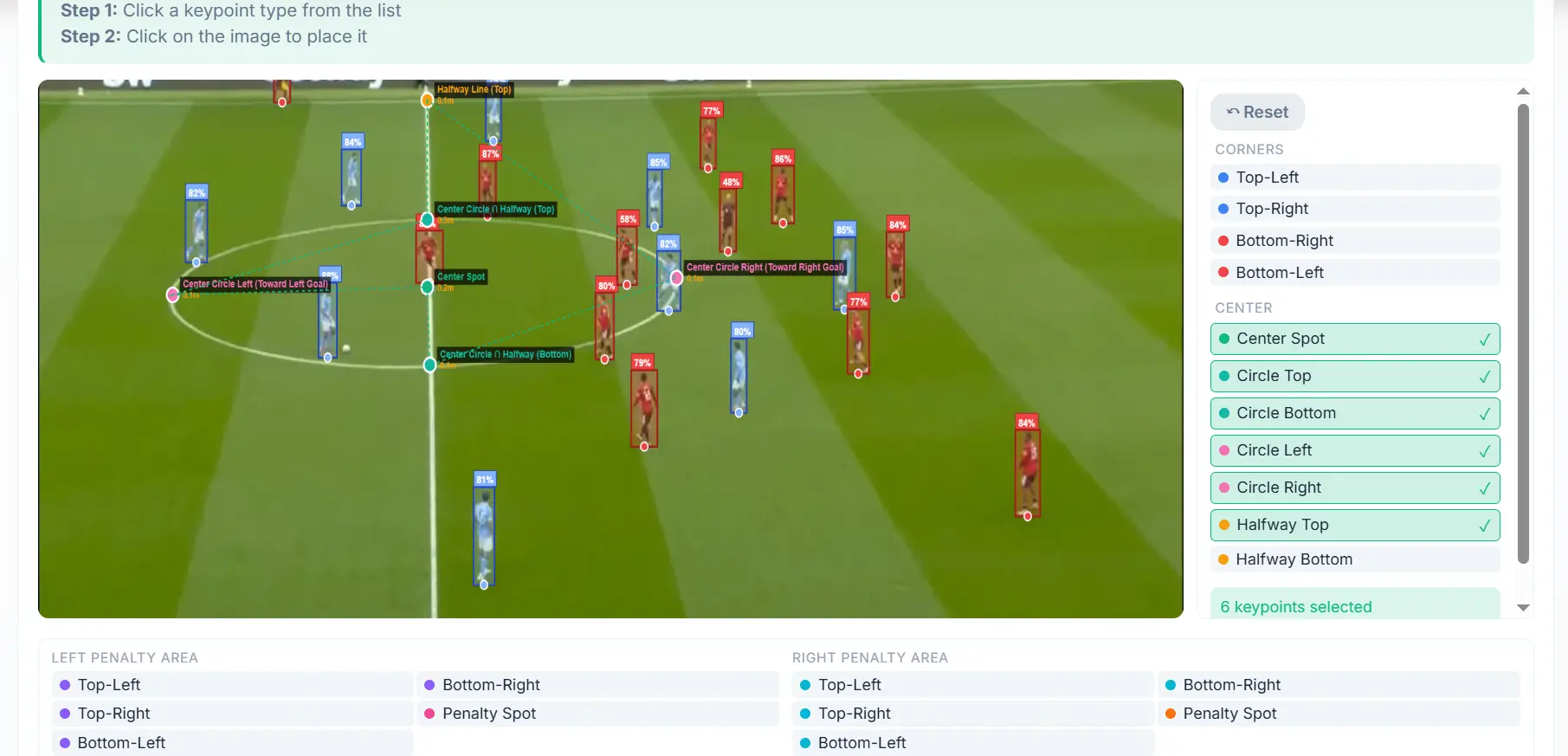
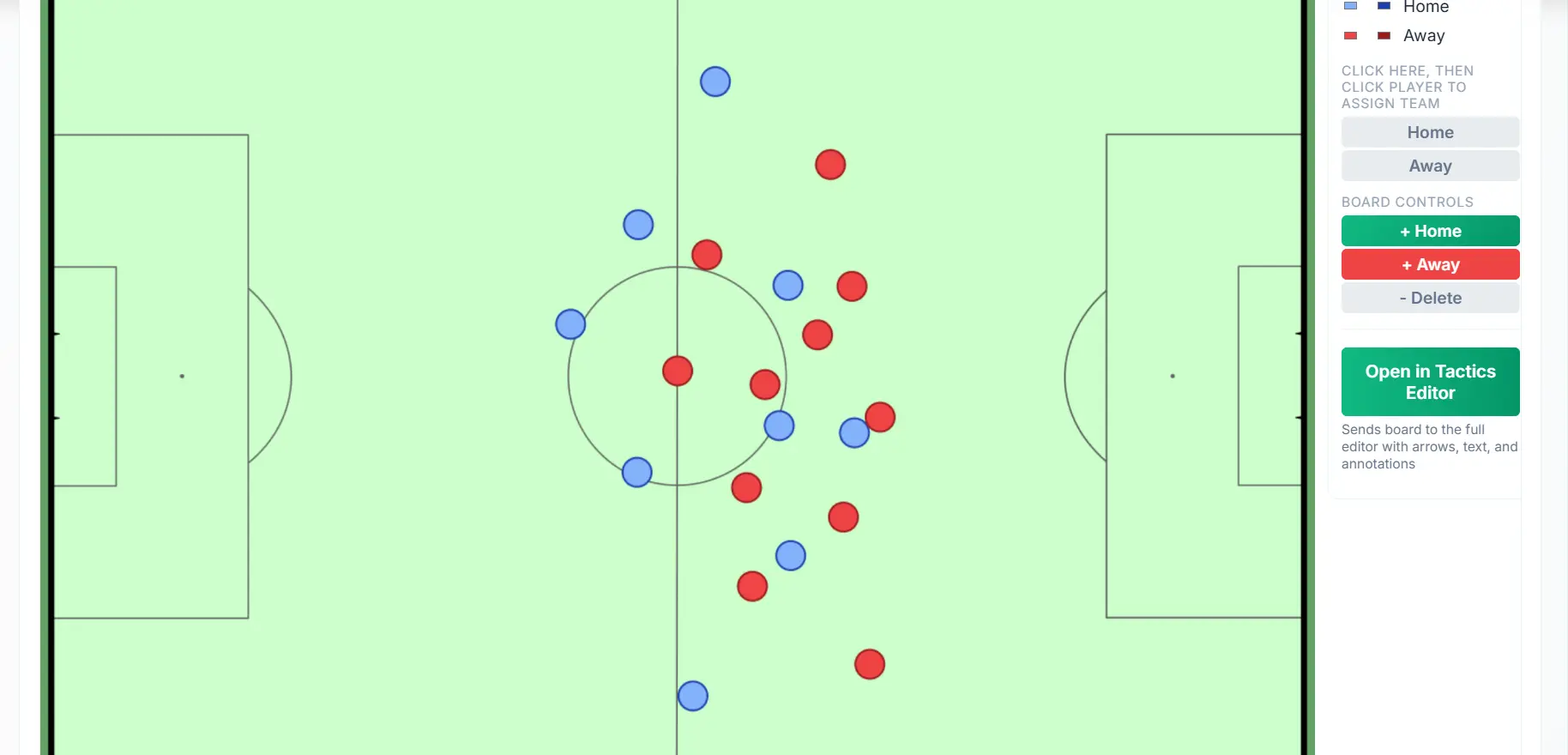
Upload a match screenshot and let AI detect players and pitch landmarks. Map the visible players onto the pitch to get a starting point for your analysis.
Review the result before building your explanation. Correct team assignments, adjust player positions, or select matching pitch landmarks to refine the mapping. AI gives you a starting point you can refine.
Open the mapped scene in the tactics board to add arrows, shapes, and text, or send it to Animation Studio to show what happens next. In the desktop animator, use the left-rail tool to map a screenshot and start a new animation from the result.
Follow one match screenshot all the way through: detect and map the players, correct the result, then build a tactical animation from it.
Choose a clear screenshot with visible players and pitch markings.
AI identifies players and landmarks to recreate the visible scene on a pitch.
Check positions, teams, and mapping. Make corrections where needed.
Continue in the tactics board or animator to create your tactical explanation.
Use a clear match screenshot with visible players and recognisable pitch markings. Wide views usually provide more useful context than close-ups. Blurred images, overlays, and hidden pitch markings can make detection and mapping harder.
It works from what is visible in the screenshot. Players outside the frame or obscured by other players cannot be reliably recreated. You can add missing players and adjust positions when reviewing the board.
No. Detection, team assignments, and perspective mapping can need correction. Treat the result as a starting point: review the scene and refine it before using it in your analysis.
Yes. Select matching pitch landmarks on the screenshot and apply the mapping. Well-spaced reference points across the image help you refine the result. You can also correct teams and player positions.
Use the standalone browser tool, or open Screenshot-to-Board from the left rail in the desktop Animation Studio for Mac and Windows (Windows beta). On desktop, the workflow opens in an overlay and sends the mapped board directly into a new animation draft.
AI inference runs locally in your browser or desktop app. The browser downloads the analysis models when needed; desktop bundles them locally. Sign-in and membership verification still require an internet connection.
Yes. In the browser, send the board to Animation Studio or the tactics board. In desktop Animation Studio, review the mapped result and choose whether to save your current animation first or replace it. The imported scene becomes the starting point for a new animation.
Yes. Both monthly and annual memberships include Screenshot-to-Board and the other DrawTactics tools. Compare membership plans.
Turn screenshots into diagrams and animations with one DrawTactics membership.
Get Started