
Folders, stars and tidying up
Keep projects in folders, star the ones you use most, and rename, download or delete them, one at a time or several together.
Star a project
Click ☆ on a card to star it, and ★ to take the star off. Starred, at the top of the page, shows only your starred projects.
Folders
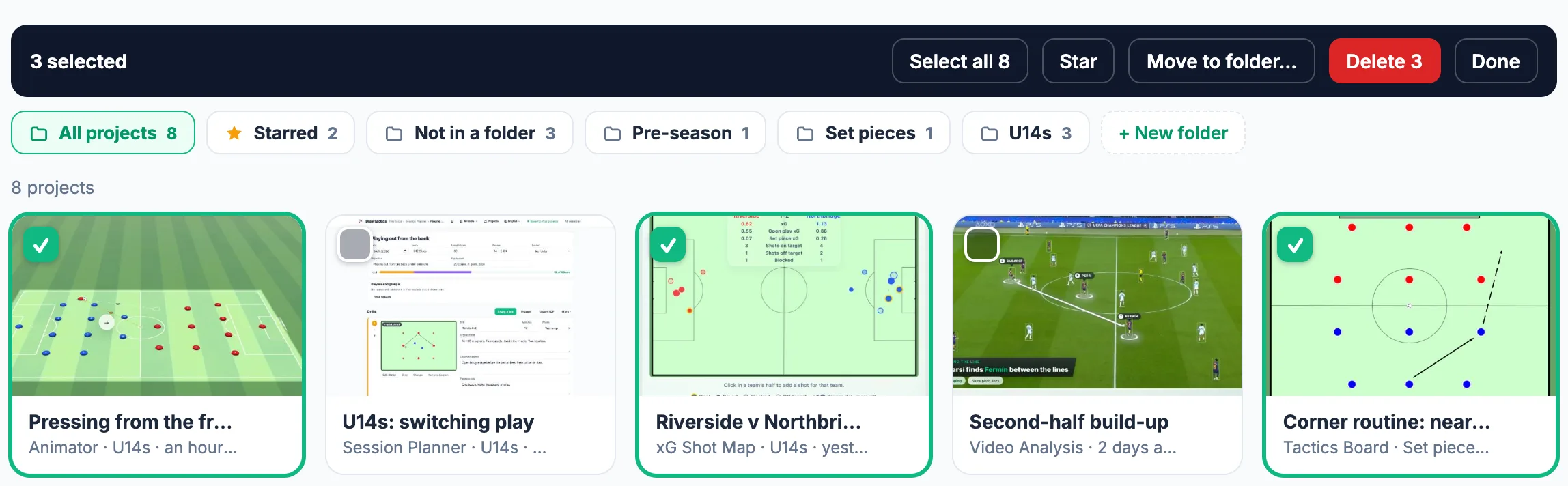
Folders keep a team's, a season's or a topic's projects together, such as "U12s" or "Set pieces". They're along the top of the page: All projects, Starred, Not in a folder, then your folders, with how many projects are in each.
- + New folder makes one. Give it a name and press Create.
- Click a folder to see only its projects. Rename and Delete folder are next to its name.
- Deleting a folder keeps its projects: they're just no longer in a folder.
These are the same folders as in the Session Planner, so a team's sessions and its boards can sit together. You can have 200 folders, with names up to 60 characters.
Put a project in a folder
Any of these:
- A card's ⋯ › Move to folder…, then choose the folder, Not in a folder, or New folder….
- Drag the card onto a folder at the top of the page. Drop it on + New folder to make a folder for it, or on Starred to star it.
- On a tablet, press and hold a card until a tray of folders comes up at the bottom of the screen, then drag the card onto one.
- In a tool, the save button's menu has Move to folder… for the project open there.
A card shows its folder's name when you're looking at all your projects.
Rename a project
⋯ › Rename…, type the new name and press Rename. You can also rename the project open in a tool from its save button.
Download a project
⋯ › Download file saves a copy of the project to your computer, named drawtactics-<project name>. Keep it as a backup outside your account. Video Analysis and Screenshot Annotator projects download as .dtvideo files, which Open project file opens again; the analysis is in the file, but not the video.
Delete a project
⋯ › Delete… asks first, then deletes the project from Your projects on every device. It can't be brought back, so download it first if you might want it again.
Deleting a board or animation that a training session uses leaves the drill with its last picture and a note. See Diagrams.
Do several at once
- Press Select.
- Click the projects you want, or Select all to pick every project shown (after a search or a filter, that's just the ones that match).
- Choose Star (or Remove star), Move to folder… or Delete. You can also drag the selected projects onto a folder at the top.
- Done (or Esc) stops selecting.
Something missing, wrong or unclear? Tell us and we'll fix it.