
Make your squads
Save each squad's players once, with their numbers, positions and who's available, and a kit to match.
Your squads keeps your teams' players: names, shirt numbers, positions and who's available. Save a squad once, then use it on every board and in the Session Planner. See Use your squads.
It's part of a DrawTactics membership, and squads save to your account, so they're there on any computer or tablet. Open Your squads, in the All tools menu under Plan, or from Your squads in any board's Import squad window.
Make a squad
- Press New squad.
- Give it a Squad name, such as "Under 14s".
- Choose its kit: a colour (the swatches beside the name) and a Pattern, such as Stripes, Hoops or Sash, with a Second colour for the pattern.
- Optionally, type its League (for example "Sunday League Division 2"). Squads with the same league are listed together when you import.
- Add the players. See below.
- Press Save squad.
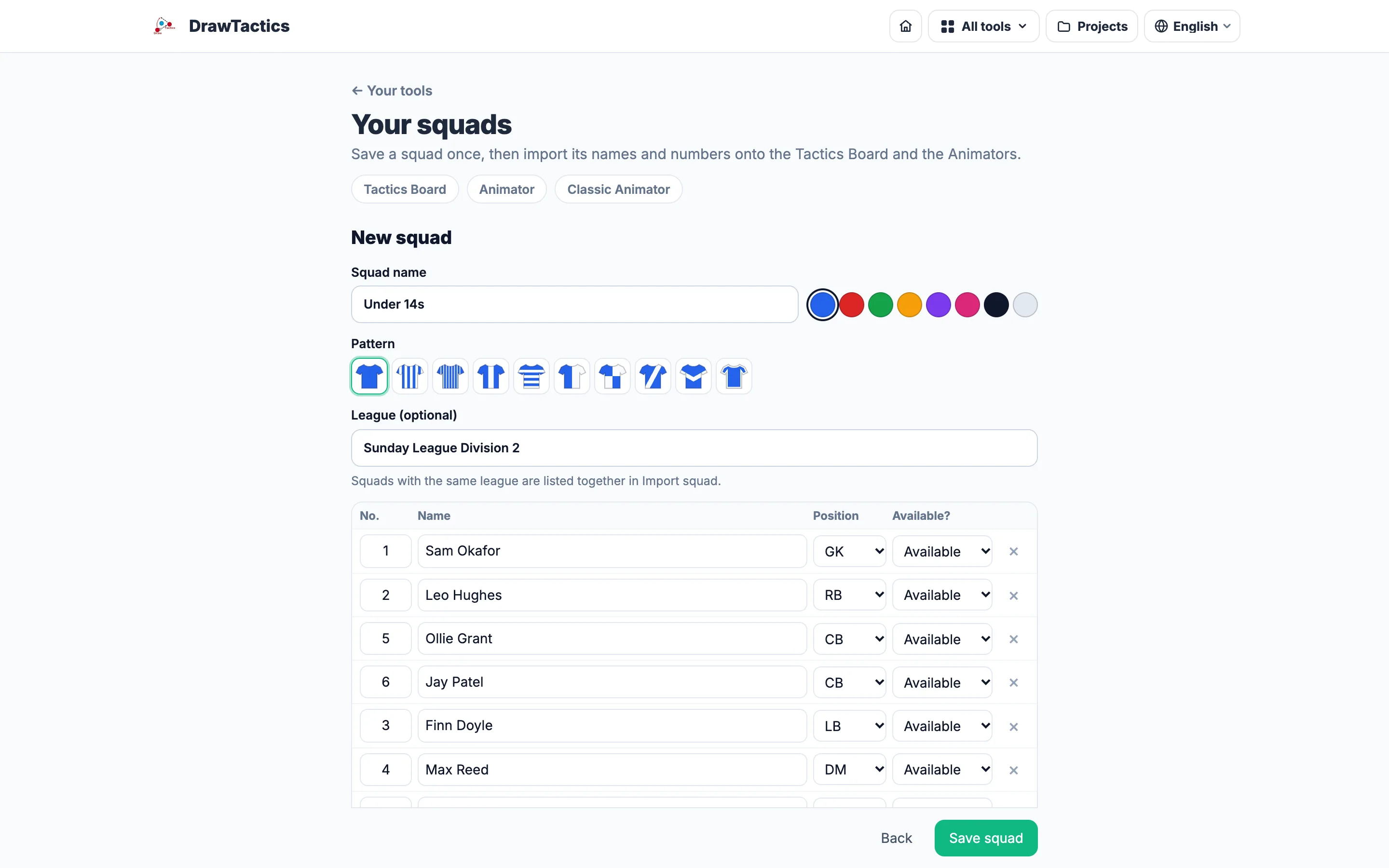
Add players
Each player has a shirt number (No.), a Name, a Position (from GK to ST) and whether they're Available, Injured or Absent.
- + Player adds a row.
- Paste a list adds many at once: paste one player a line, such as
9 Ryan Patel STorSam Okafor, 1, GK, and press Add these players. The number, name and position are picked out of each line. - × removes a player.
A squad can have 60 players, and you can have 50 squads.
Who's available
Mark players Injured or Absent before you import: they're left out of the board's line-up. Change it back to Available when they're fit.
Change or delete a squad
Click a squad in the list to change it, then press Save squad. Delete squad deletes it for good. Boards and sessions you've already made keep their players.
Something missing, wrong or unclear? Tell us and we'll fix it.